
.webp)


Use to summarize this article


- Built in: Webflow applies right-to-left direction automatically to Arabic locales on published sites, with no custom code.
- What mirrors: Text, flexbox rows, grid columns, and inline elements flip on their own.
- What doesn't: Fixed left and right margins, absolute positions, directional icons, and horizontal animations need Arabic overrides or logical CSS properties.
- Keep left-to-right: Numbers, prices, code, emails, URLs, and English brand names.
- SEO: Webflow adds hreflang automatically. Choose ar, ar-SA, or ar-AE based on whether your content differs by country.
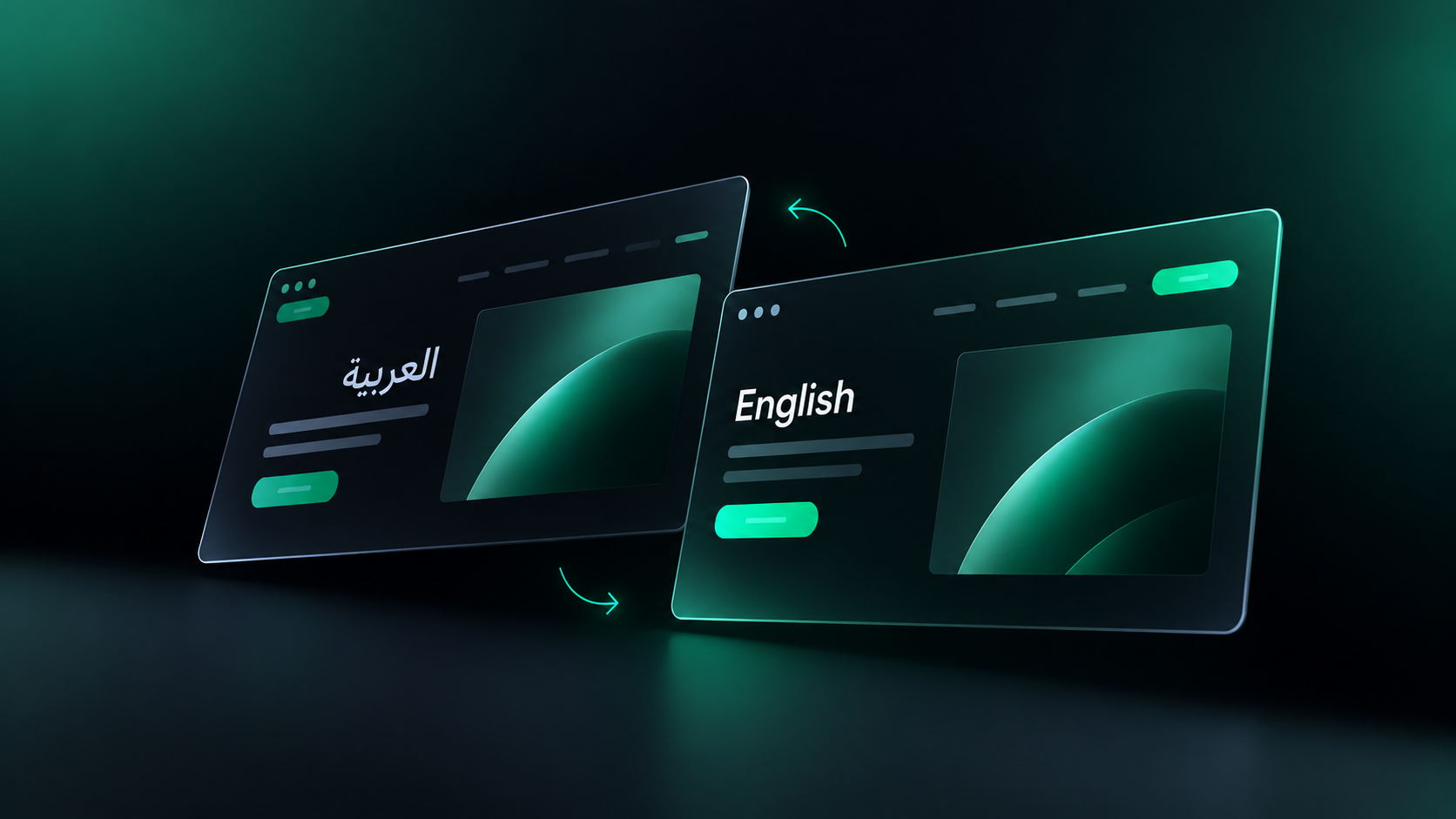
To build an Arabic and English website in Webflow, add an Arabic locale in Webflow Localize. Webflow switches the Arabic pages to right-to-left automatically. Then fix the parts of the page that don't mirror on their own, set Arabic fonts and SEO, and test everything on the published site.
The direction switch is automatic. Everything around it is a design and build decision.
This guide goes through an Arabic page layer by layer: locale setup, layout, navigation, typography, numbers, forms, CMS, SEO, and AI search. For each layer, you'll see what changes in Arabic, how to handle it in Webflow, and what to check.
If you're still choosing a partner for the GCC, see our lists of Webflow agencies in Saudi Arabia and Webflow agencies in Dubai.
How does Webflow handle Arabic by default?
Webflow applies right-to-left direction to Arabic locales on its own. You don't need custom code to turn it on.
According to Webflow's Help Center, RTL is supported automatically on published sites for Arabic (ar), Persian (fa), Hebrew (he), Urdu (ur), and Yiddish (yi). That includes regional versions like Arabic (Iraq), and it applies even before the text is translated.
Webflow Localize also gives every locale:
- Its own subdirectory, like yourbrand.com/ar/.
- Localized styles, which are available on every Localization plan.
- Localized SEO, including HTML lang tags, page-level hreflang tags, and hreflang in auto-generated sitemaps.
- Content inheritance, so the Arabic locale shows your English content until it's translated.
How different should your Arabic site be from your English site?
Decide this before you design anything. It sets the scope of the whole project.
There are three levels to choose from.
Mirror:
Same pages, same content, translated into Arabic. The layout mirrors right-to-left, and nothing else changes.
Good for: a first Arabic launch, or a site where every market gets the same offer.
Adapt:
Same page structure, but Arabic gets its own fonts, imagery, customer logos, and proof points. Pricing and contact details may change for the region.
Good for: B2B companies selling actively in Saudi Arabia or the UAE. Webflow supports this with localized styles, images, alt text, and element visibility per locale.
Rebuild:
Arabic gets sections or pages that English doesn't have, like a Saudi-specific compliance page or a local partner program.
Good for: markets that need a different story. You can hide and show elements per locale. If the differences grow too large, read Should You Use One Webflow Site or Multiple Sites for Global Markets?
| Level | What changes in Arabic | Webflow features you'll use | Best for |
|---|---|---|---|
| Mirror | Translated content, mirrored layout | Arabic locale, automatic RTL | A first Arabic launch |
| Adapt | Fonts, imagery, logos, proof, and regional details | Localized styles, images, and alt text | B2B teams selling actively in the GCC |
| Rebuild | Arabic-only sections or pages | Element visibility per locale | Markets that need a different story |
Layer 1: How do you set up the Arabic locale?
What changes in Arabic:
Arabic becomes a secondary locale with its own URL path. Visitors and search engines see it as a separate language version of the same site.
How to set it up in Webflow:
- Pick your primary locale. Every other locale inherits from it. For most global B2B sites, it's English.
- Add the Arabic locale. Choose Arabic alone, or Arabic plus a region, like Arabic (Saudi Arabia) or Arabic (United Arab Emirates).
- Set the subdirectory. For example, /ar/ or /ar-sa/.
- Confirm your plan. Localization Essential supports up to 3 locales, and Advanced supports up to 10.
Use Arabic alone if one version serves every Arabic-speaking market. Use Arabic plus a region if Saudi Arabia and the UAE need different content.
What to check:
Check your site-wide language setting. A community-reported issue showed a site-wide locale setting overriding locale-specific styles on the published site, even though the Designer preview looked correct.
Layer 2: How do you build layouts that mirror correctly?
What changes in Arabic:
The page reads right to left. Columns, rows, and alignment should flip so the layout feels native, not reversed.
But the dir="rtl" attribute only changes direction. It doesn't rewrite your CSS.
These mirror on their own:
- Text alignment and reading order
- Flexbox rows, because a flex row follows the text direction
- Grid columns
- Inline elements like links and buttons
These don't:
- Margin-left, margin-right, padding-left, and padding-right
- Absolute positioning set with left or right
- A hard text-align: left
- Horizontal animations
- Background images
How to set it up in Webflow:
Webflow's own guidance recommends logical CSS properties instead of fixed left and right values:
- margin-inline-start instead of margin-left
- padding-inline-end instead of padding-right
- text-align: start instead of text-align: left
Logical properties follow the text direction. "Start" means left in English and right in Arabic, so one style works in both.
Build layouts with flexbox and grid. Add logical properties as custom properties in the Style panel. Where you can't avoid left or right, add an override on the Arabic locale.
What to check:
Look for anything that still hugs the wrong edge in Arabic. Badges, close buttons, decorative shapes, and side panels are the usual culprits.
Layer 3: How do you handle navigation, icons, and logos?
What changes in Arabic:
Navigation order mirrors. The logo usually moves to the right, and menu items read right to left.
Directional icons need to flip too. An arrow pointing right means "next" in English and "back" in Arabic.
How to set it up in Webflow:
- Let flexbox handle nav order. A flex-based navbar mirrors automatically.
- Flip directional icons per locale. Add a horizontal flip transform to arrow and chevron classes on the Arabic locale only.
- Never flip logos. Wordmarks and brand marks stay exactly as designed.
- Never flip media. Photos, screenshots, and videos stay as they are.
- Add a language switcher. Webflow has a native locale switcher element, so visitors can move between English and Arabic versions of the same page.
What to check:
Check breadcrumbs, pagination, carousels, and "Read more" arrows. Check the mobile menu and any off-canvas panels open from the correct side.
Layer 4: How do you set Arabic fonts in Webflow?
What changes in Arabic:
Most Latin fonts don't include Arabic characters. Arabic needs its own font, sized and spaced for its own letterforms.
How to set it up in Webflow:
Webflow recommends Unicode-friendly fonts with broad script support and locale-specific fallback fonts, set at the class level in the relevant locale view.
- Pick a font built for Arabic. Google Fonts offers options like Noto Sans Arabic and IBM Plex Sans Arabic.
- Match the feel of your Latin font. Similar weight and personality keeps the brand consistent across languages.
- Override typography on the Arabic locale only. English stays untouched.
- Use localized variables. Webflow supports localized variable collections, so font size and line height tokens can differ per locale.
What to check:
- Line height. Arabic letterforms often need more vertical space to read comfortably.
- Letter-spacing. Remove it from Arabic text. Arabic letters connect, and extra spacing breaks the script.
- Font weights. Make sure every weight you use in English exists in the Arabic font.
Layer 5: What should stay left-to-right on an Arabic page?
What changes in Arabic:
Not everything should read right to left. Some content keeps its original direction inside Arabic text.
Content that stays left-to-right:
- Numbers, phone numbers, and prices
- Code snippets and API examples
- Email addresses and URLs
- Brand and product names written in English
How to set it up in Webflow:
To keep an element left-to-right, change its text direction in the Style panel under Typography, or add a custom attribute of dir="ltr". For user-entered text, use dir="auto" so the browser picks the direction from the content. Both options are covered in Webflow's Help Center.
Keep brand and product names out of translation with Webflow's translation glossary.
What to check:
Read sentences that mix Arabic with English names, numbers, and punctuation. Check that commas, brackets, and full stops land in the right place.

Layer 6: How do you handle forms, sliders, and interactions?
What changes in Arabic:
Interactive elements carry the most risk. They rely on positioning and movement, and those don't always mirror.
How to set it up in Webflow:
- Forms. Use dir="auto" on input fields, so names and emails typed in English still display correctly. Check label position and error messages.
- Sliders. A community thread found the native Webflow slider stopped working inside an RTL container. The fix was to apply RTL to text elements, not the slider's parent. Test your slider in the Arabic locale.
- Interactions. Horizontal movement doesn't reverse automatically. Rebuild slide-in effects for the Arabic locale where needed.
- Dropdowns and tabs. Check menus open toward the correct side.

What to check:
Test every interactive element on the published site, not only in the Designer.
Layer 7: How do you localize CMS content into Arabic?
What changes in Arabic:
Every CMS item needs an Arabic version. Blog posts, case studies, and product content all inherit English until they're translated.
How to set it up in Webflow:
You can translate CMS items by hand, through a translation app, or with Webflow's Agentic Translation, which launched on September 29, 2026.
Agentic Translation has two modes:
- One-time translation translates a whole language once, including page content and metadata. Your team reviews it before it goes live.
- Continuous translation keeps a locale in sync with your primary locale as content changes.
For an Arabic launch, one-time translation plus review by a native Arabic speaker is the safer route. Confirm Arabic is available for AI translation in your locale settings before you plan around it.
Use exclusion rules to keep brand names, SKUs, and code out of translation. Translated words also count toward your plan's word limits, pooled across locales.
What to check:
Older community reports noted that CMS Option fields couldn't be localized. Test this on your site before building filters or labels around Option fields.
More on setup in What Is Webflow Agentic Translation and How Does It Work?
Layer 8: How do you set up SEO for Arabic pages?
What changes in Arabic:
Arabic pages need their own URLs, metadata, and keyword targets. Arabic search terms aren't direct translations of English ones.
How to set it up in Webflow:
Hreflang. Webflow adds hreflang for each locale automatically. Your decision is the locale code.
Google's localized versions guide explains that hreflang uses a language code with an optional region code, and a region code can't be used alone.
- ar targets Arabic speakers anywhere.
- ar-SA targets Arabic speakers in Saudi Arabia.
- ar-AE targets Arabic speakers in the UAE.
Only use regional codes if the content actually differs by country.
Slugs. Arabic slugs can use Arabic script or transliterated Latin letters. Pick one approach and stay consistent. Collection slug translation is available on Advanced and Enterprise Localize plans.
Metadata. Localize every SEO title, meta description, and Open Graph setting. Don't leave English metadata on Arabic pages.
Visitor routing. On Advanced and Enterprise plans, Webflow can route visitors to their preferred language based on browser settings. Keep a visible language switcher anyway.
What to check:
Run Arabic keyword research separately, based on how your buyers actually search in Arabic. Then confirm every Arabic page has localized metadata and appears in the auto-generated sitemap.
Moving an existing Arabic site to Webflow? Follow our multilingual migration guide to protect rankings.
Layer 9: How do Arabic pages show up in AI search?
What changes in Arabic:
When a buyer asks ChatGPT, Perplexity, or Google AI Overviews a question in Arabic, Arabic pages give those engines Arabic content to cite. Without them, your site relies on engines finding and reinterpreting your English pages.
How to set it up in Webflow:
- Answer first. Open each Arabic section with a direct answer.
- Keep entity names consistent. Brand and product names should match across both languages.
- Add structured data on both locales. FAQ and organization schema help engines understand each page.
- Keep the Arabic locale current. Continuous translation can help once your rules are set.
What to check:
Ask AI search engines your key buyer questions in Arabic. See which pages they cite, and whether yours appear.
Our SEO and AEO team works on multilingual Webflow SEO, including AI search visibility.
Arabic Launch Checklist
- Arabic locale and code chosen: ar, ar-SA, or ar-AE
- Fixed left and right values replaced with logical properties or Arabic overrides
- Directional icons flipped, with logos and media left as designed
- Arabic font set on the Arabic locale, with letter-spacing removed
- Numbers, code, and emails kept left-to-right
- Sliders, forms, and interactions tested on the published site
- Arabic metadata and Open Graph localized on every page
- Native Arabic review done before launch
Where should you start if you're adding Arabic to an existing site?
Start with an audit, not a translation.
- Audit the English site for fixed left and right values. Every one becomes an Arabic bug. Replace them with logical properties or plan Arabic overrides.
- Choose your level: mirror, adapt, or rebuild. This decides how much design and content work Arabic needs.
- Set up the Arabic locale and fonts first. Then translate, starting with your highest-value pages.
- Test on the published site. Check sliders, forms, interactions, and mobile menus in Arabic before announcing the launch.
Building for the GCC? See our guides to Webflow agencies in the Middle East and headless CMS agencies in the Middle East.
Planning an Arabic and English Webflow site? Talk to Flowtrix. Our Webflow Enterprise team plans both directions before design starts.
Flowtrix has delivered 120+ website projects for B2B SaaS, AI, and cybersecurity teams, including companies selling across the Middle East.
.svg)
Region and industry-specific layouts for an HRMS used across India, the Middle East, Africa, and APAC.


FAQ's
The most common questions teams ask before building an Arabic and English website in Webflow.










.svg)

.svg)



%201.svg)


.svg)
.svg)